
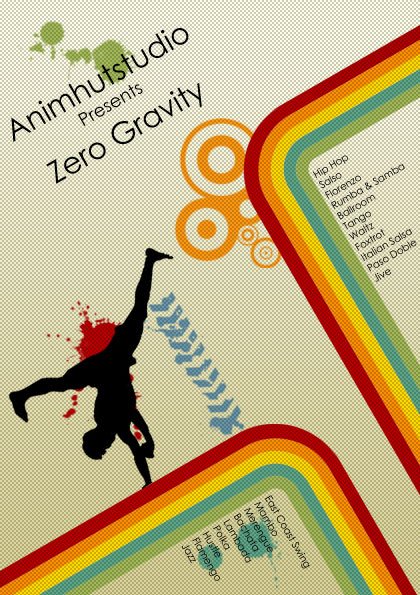
Hi friends, viewers, readers, visitors and followers. We are back again with tutorialCheck out more tutorials posts. Today, in this post we are going to see how to create a retro style dance flyer. You can make use of this flyer for creating either a dance show flyer or a dance competition flyer. Ok, now let us move into the tutorial.
Preview
Step 1
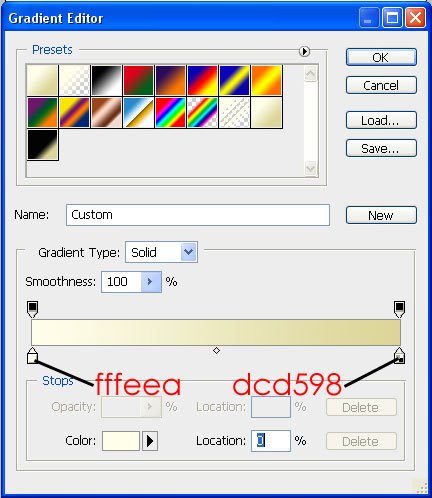
Open a new document of size A5 in portrait mode with 300 ppi. Apply a gradient color as background like this using the following values.

Step 2
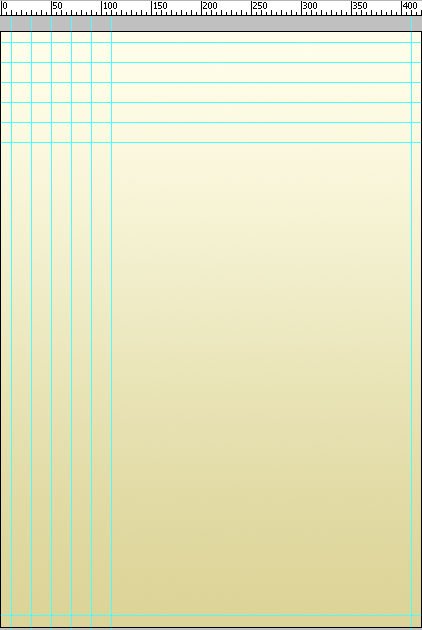
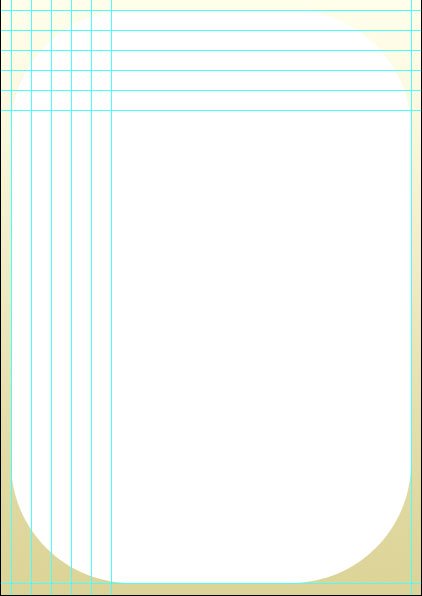
Now comes the most imporatant part. Press Ctrl+R to open up the rulers. Right click on the rulers and change it into pixels. Now drag and drop guides like this. Make sure that you drag and drop guides at the same postions as shown in picture below.
Step 3
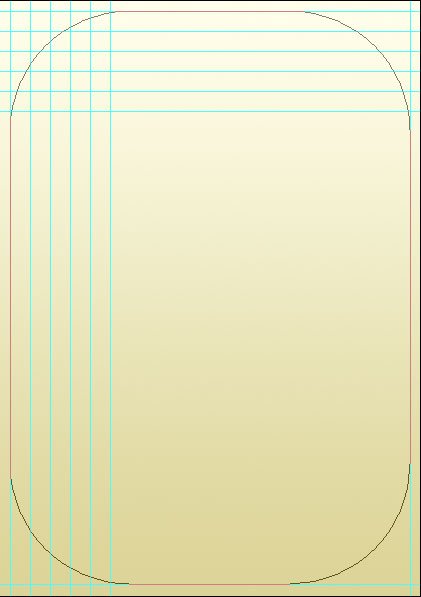
Now take rounded rectangle tool with paths option selected and draw a rounded rectangle using the four guides as borders and 120 px radius. Now press ctrl+enter and fill it with some color.
Step 4
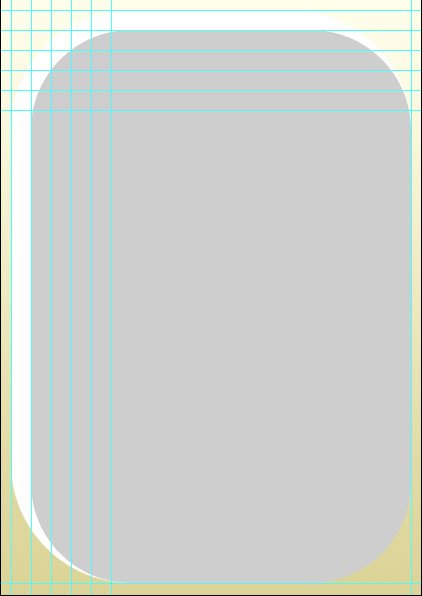
Now create a new layer and create another rounded rectangle of radius 100 px but in this way.
Step 5
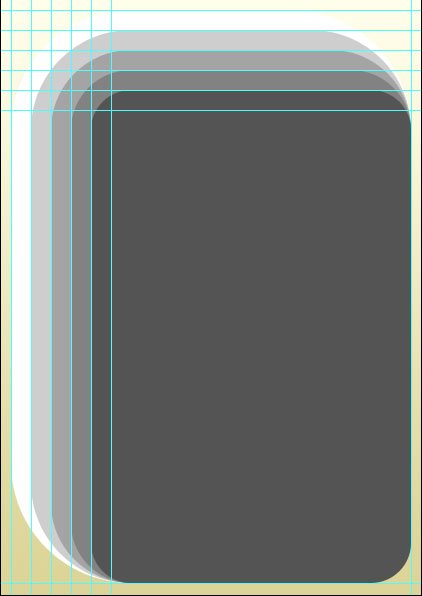
Repeat creating 3 more rounded rectangles with radius 80px, 60 px and 40 px like this.
Step 6
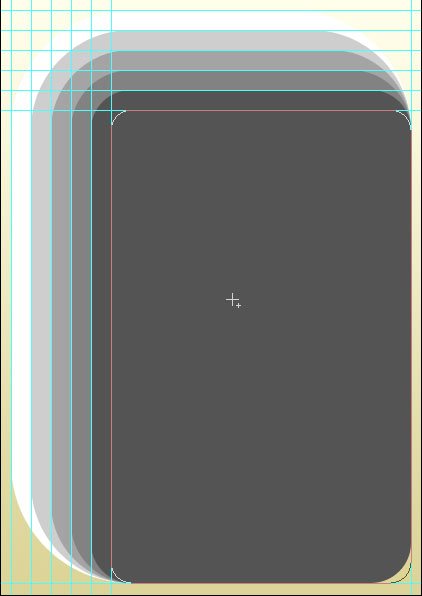
Now take the rounded rectangle tool and create only the path like this with 20 px radius.
Step 7
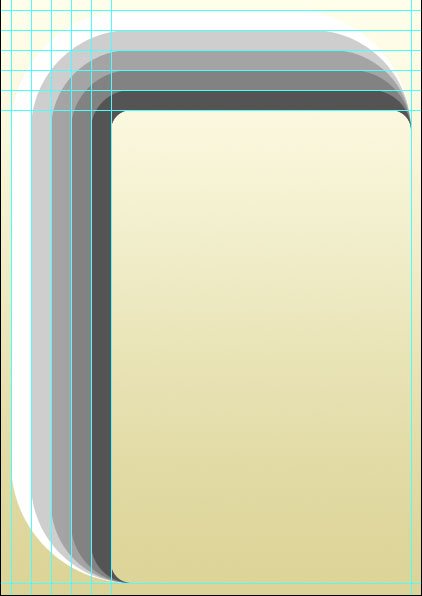
Now press ctrl+enter and make it into a selection and delete that portion in all rounded rectangle layers.
Step 8
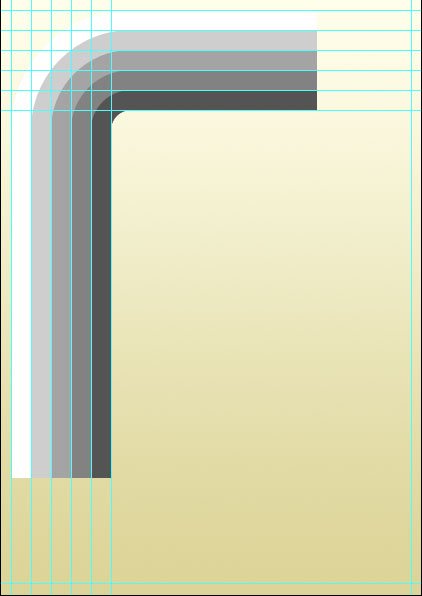
Now delete the rounded portions in all the rounded rectangle layers like this.
Step 9
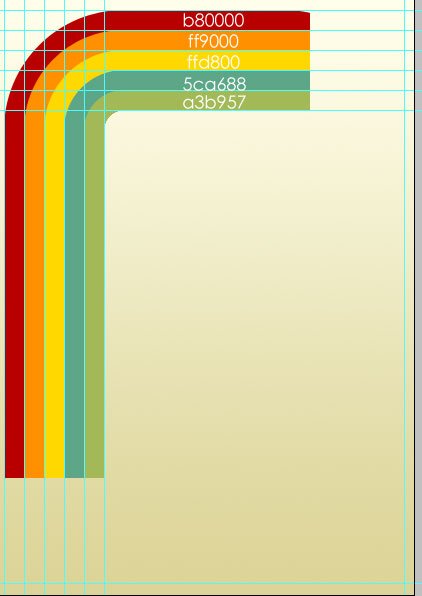
Now apply color overlay for the rounded rectangle layers in this manner.
Step 10
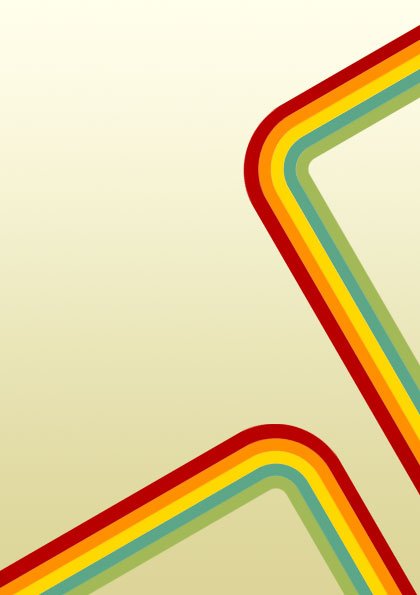
Now select all the rounded rectangle layers together. Press ctrl+t and rotate it 30 degrees anti-clockwise. And shrink to 80 percentages and place it in such a manner.

Step 11
Now select all these rounded rectangle layers together and press ctrl+g to group all of them. Now take a copy of this group by drag dropping this group on the create new layer icon available at the bottom of the layers palette. Once you have taken a copy of the group. Press ctrl+t with the copied group selected. Now right click and choose rotate 90 degrees clockwise option. Once it is rotated now place the copied group in this manner.
Step 12
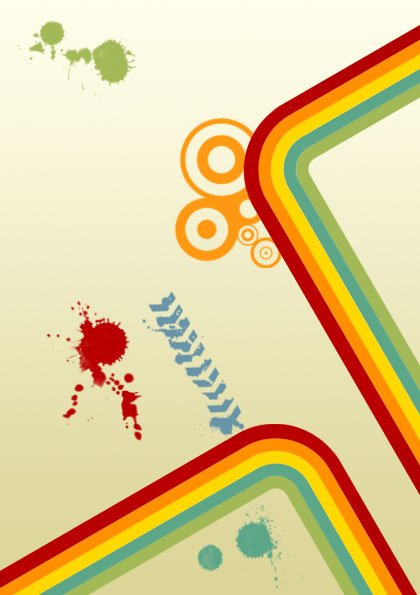
Now download some spatter brushes, urban brushes and circle brushes and apply it here and there where ever you like. But make sure you make use of the same 5 colors that you have made use for the rounded rectangles.
Step 13
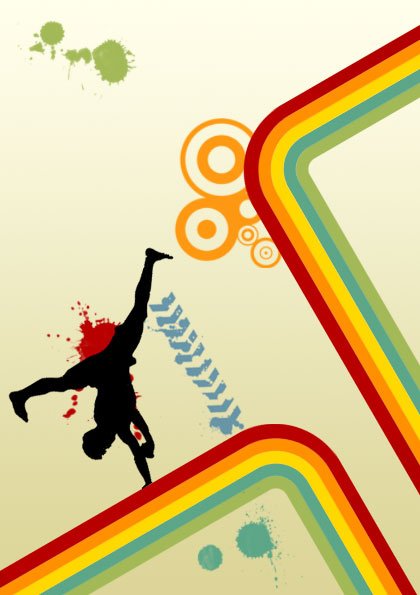
Now take a silhouette of a guy dancing and place it in a comfortable place according to the picture you have taken. I have placed it here.
Step 14
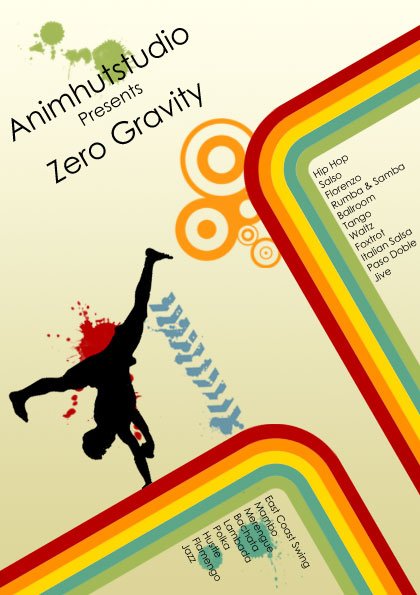
Now type the event name and details in some typography format using some nice font.
Step 15
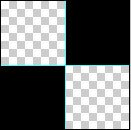
All that comes after this are finishing touches. Open a new document with transparent background of size 4 px X 4 px. Now create two black squares each of size 2 px X 2 px in this manner and save it as a pattern by going to Edit -> Define Pattern.
Step 16
Now go back to your original document. Create a new layer on top of all layers. Press Ctrl+A to select the whole area. Go to Edit -> Fill. The fill dialog box opens up. Choose pattern in that and select the custom pattern that we have created just now. Then reduce the fill opacity to 20%. That’s all. You are done now.
Hope you all enjoyed this tutorial. Stay tuned for more tutorialsView more Tutorials.





nice tutorial! easy to follow, plus great end product!! thanks
Thank you lee gustin. I have comeback after a break and these comments are really boosting.
wow, nice tut sagar sir :), its so colorful n eye catching, grt go
Thank you karthi. It is great to receive such comments from a co-author.
Woah! That’s just awesome, Sri!
Lookin’ forward to seeing more tutorials from you.
Mis-looked the author name. Apologies, Sipi Sagar. =)
Thank you Charlton for the comments.
amazing final results. like it better without the last step. still cool!
The last step is optional and you can leave it if you don’t like it and thanks for the comments Diana. Stay tuned for more tuts.
awesome tutorial.
Thanks you for share.
thank you designbyarm. I am really happy about your comments. Short as well as sweet.
sweet tutorial
Hi mars, Hearing from you after a long time. Thanks for the comeback.
really its been a busy days that is why
Cool one!! Thnx
Thank you dirk. Welcome to animhut.
Your tutorials are really really good.. no doubt about that.. 🙂
Pam Carter i have got more good tutorials. Please visit animhut daily for lots of surprises like tutorials, freebies, giveaways and etc.,.
Wow! Nice output. Amazed. Sign 🙁 I am using Mac and will figureout a way to design in Mac. A newbie too can design this with detailed instruction.
great tutorial, a nice source of inspiration for my next flyer for sure, thanks
An excellent tutorial post on creating retro style dance flyer. We can use the easy step by step method here to make a flyer and participate in competitions.
This is a really great tutorial. I have explained to my daughter that she must learn to work with layers and take your time. The way the rainbow was designed was awesome.
Very good
I love this!! I have been looking for some inspirations like this because I often use Photoshop. We have this event coming and now I have the idea for my banner and posters 🙂 Thanks!
Hi Sipi,
I liked the retro rainbow colours so much I added them as a colourlovers palette — http://bit.ly/aIZPJy
Awesome….flyer…thanks for the tutorial gonna try it 😀