
We might have seen lot of tutorials about creating 3d text in different ways, but in this tutorial we are going to see completely a new breed of 3d text in which only the depths of the 3d text is visible but still you can read the text. These kinds of 3d text effects will be very useful in creating something in graffiti style.
Step 1: Open the document
Open a new document with any size that you desire and type the text that you like. I have typed this one.

Step 2: Creating the 3d effect
Now holding on alt press right arrow 7-10 times. Now re-arrange the layers such that the original text layer is on the top then below comes the copy of them in ascending order.
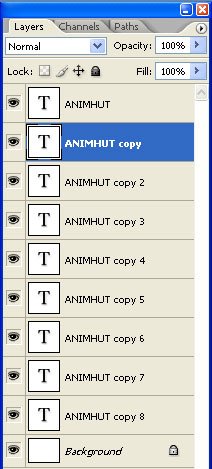
You will get output like this.

Step 3: Merging layers
Now select all layers other than the original text layer and merge them all together by pressing ctrl+e.
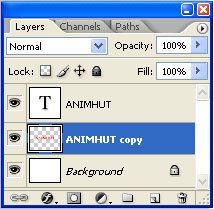
Step 4: Make selection
Hold ctrl and click inside the thumbnail of the original text layer with the merged layer still selected and press delete. Then hide the original text layer. Now only the depths of the 3d text layer remains and the highlight gets disappeared and you get a different 3d text.

Corollary: Now you can change the background color and still the 3d text is not affected. You can place them on any wall texture and change the blending mode to overlay and get graffiti style.
Final Output

Download Tutorial



Nice and simple!
See my “How to create an animated banner in Photoshop” tutorial
http://logolitic.com/how-to-create-a-banner-animation-in-photoshop-tutorial/
.-= logolitic´s latest blog ..How to create an animated banner in Photoshop tutorial =-.
Thanks, logolitic. Visit other posts from animhut also to get more freebies, tuts, tips and tricks. Also stay in toch with animhut for more of future posts.
Hey this seems very innovative tutorial comparing with previous articles. Thanks for the post.
nice bunch of tips..simple to understand..
Thanks Tenant,stay in touch with animhut for more bunch of nice tips.
Thank you Kathy, Sure as you told we can produce magics with the power of photoshop. I read your latest post ..Shameless Self Promotion .. really impressive.
simple text tutorial
.-= Umesh Katkar´s latest blog ..Phyrranet Migrated to WordPress =-.
thanks umesh. text effect tuts are always simple but generally people make it complicated in the name of making it more elegant.
Thanks tracy, Surely we will post more text effects tutorials. stay in touch with animhut for that.
Thanks Sipi. Very simple to do but a very good effect that can be done quickly. I can’t wait to learn more photoshop tricks to save me time. I am so slow right now.
I am glad you provided this one with ready-to-download material. nice!