
TILT-SHIFT METHOD USING PHOTOSHOP
TODAY WE ARE GOING TO LEARN TILT-SHIFT METHOD. Usually this method adopts in photography, the name “tilt-shift” is a type of lens for high digital camera and it cost high. There is another technique to get the same effects using Photoshop.
-the basic stuff here is, you have to take appropriate photos to use them as a source, remember not all the photos can have this effects. It gives good result according to your chosen image.
Here i have chosen this image taken by me. Mistake made by me is turn of the 8megapixel option or else i have taken a high resolution images. But for this 640*480 pixel is enough. Next time I’ll give more high resolution images. Lets jump into the tutorial.
Step:1 The source image we are going to use can be downloaded from [*here].Open the image in Photoshop and duplicate the layer.now hide the original(background image).so that if any errors occurs we can rectify or if we want the source image to use on more time it comes in handy.
Step:2 Now select Image – adjustments – curves. And change the graph like shown below. (Tip: change according to your source image)
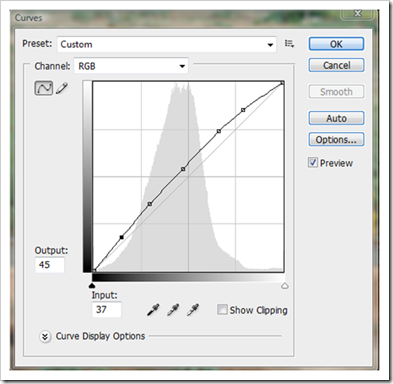
Step:3
Now under filter menu choose Blur – Lens Blur and give this value.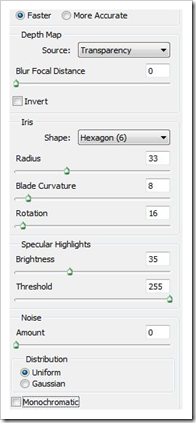
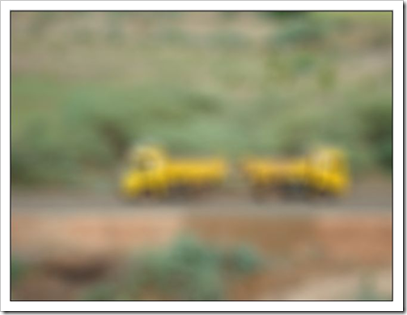
After giving the values chose Rectangle marquee tool and select 7px feather, it avoid sharp edges around the selection. Using History brush erase Inside the selection part. Remember to choose soft brush(basic brush found in brush pallete).
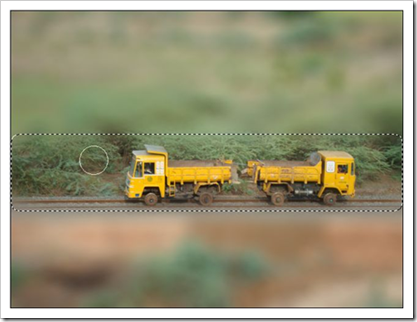
Step:4
In this step,we have to give some colour balance( Ctrl+B ). And give this values.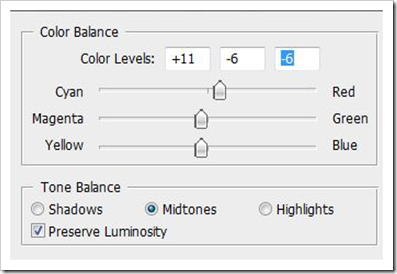
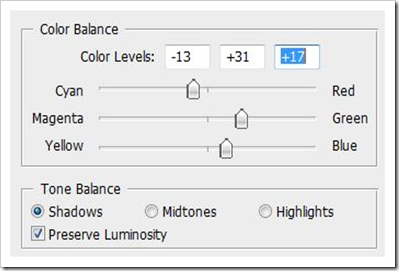
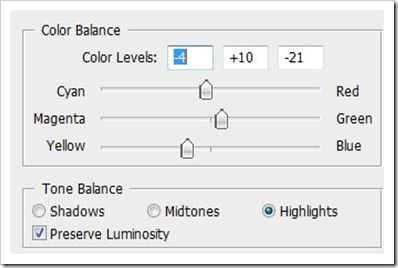
Step:5
You can use blur tool to smooth the edges around the marquee selection . now add some curves settings the image for final touchup, If you satisfied,the result will be… Final output.
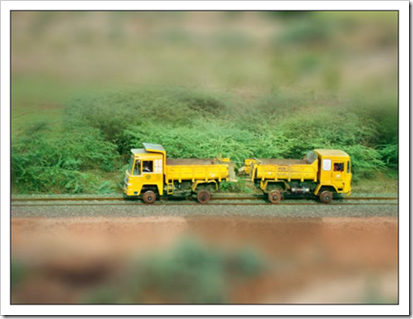
There is another option: you can duplicate the current layer and play with Opacity and layer mode. My choice is pin light and hard light, Vivid light, overlay, soft light will be good.



This tutorial is good. and easy. adn u have a nice sense of photography , even with smal config camera. 😆
Thank u
dude , nice photo and tuts da. i Rt. 🙂
thanks for Rt, i like it 😛
😛 nice ,simple tutorial,you should take more snap to show here, u have only less image try to take from top buildings and beach is good. ➡
i will take your advice, and try more
i like it , its very simple every one can do. 😯 but to do better ,next time, all the best. 😡
i dont like it 😯 , its very simple every one can do
sorry to disappointment you, may i know y u dont like it 😳
and thanks for sharing your feedback
😡 oh is that so, can u tell me where i can see your work, plz respect others work. if u cant do , sit silence and dont balme others 😡
.-= pooja´s last blog ..How to Design the Web in a High-Def World =-.
nice photography u took. try more closeup next time ➡
sure da, 😡 ena da sona enaku odampu poora moolai nu, dai
nice post brother.
thanks sis, 🙂
u can do better . i am proud of u 😆
thanks dude
Not a very good end result. Try harder next time, good try tho.
thanks for the comment, little ruff, this is my first attempt. i ll do better next time.